
Category: Support Resources
These are the post of support resources
-
Latest Update on iTraker Android App
Latest Update on iTraker Android App
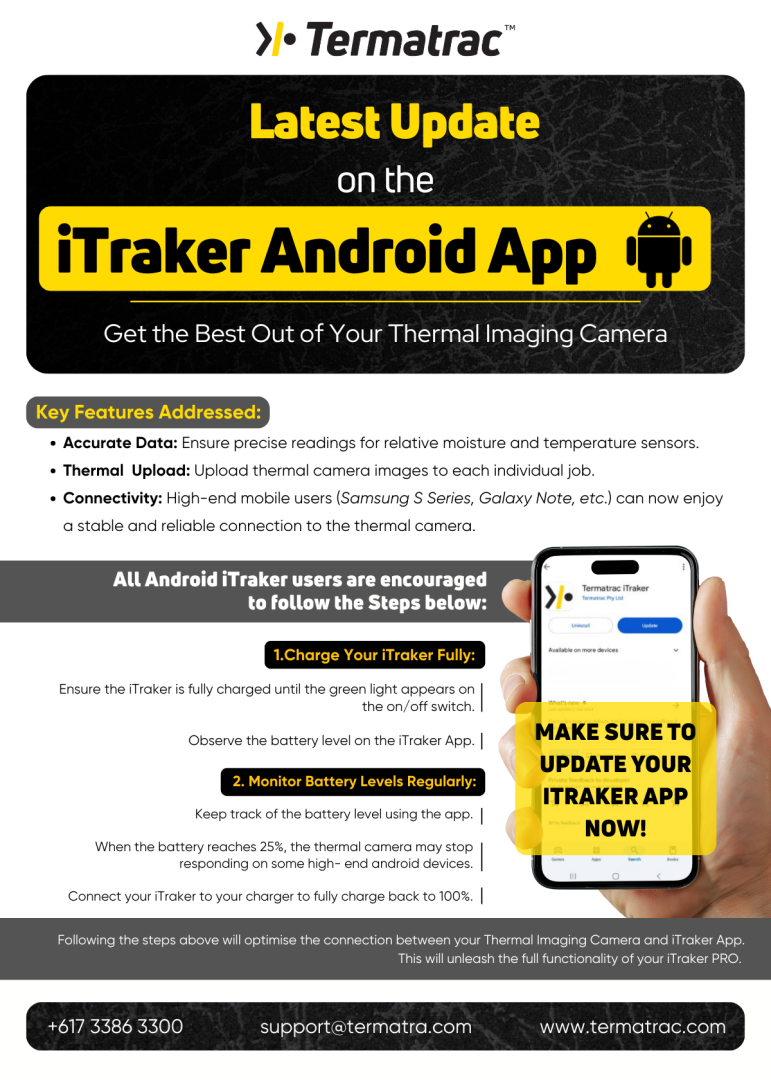
Key Features Addressed:
- Accurate Data: Ensure precise readings for relative moisture and temperature sensors.
- Thermal Upload: Upload thermal camera images to each individual job.
- Connectivity: High-end mobile users (Samsung S Series, Galaxy Note, etc.) can now enjoy a stable and reliable connection to the thermal camera.
All Android iTraker users are encouraged to follow the Steps below:
1.Charge Your iTraker Fully:
- Ensure the iTraker is fully charged until the green light appears on the on/off switch.
- Observe the battery level on the iTraker App.
2. Monitor Battery Levels Regularly:
- Keep track of the battery level using the app.
- When the battery reaches 25%, the thermal camera may stop responding on some high- end android devices.
- Connect your iTraker to your charger to fully charge back to 100%.
Following the steps above will optimise the connection between your Thermal Imaging Camera and iTraker App. This will unleash the full functionality of your iTraker PRO.
Make sure to update your iTraker app now!
-
Connection Tips – iOS
Connection Tips for iTraker iOS users
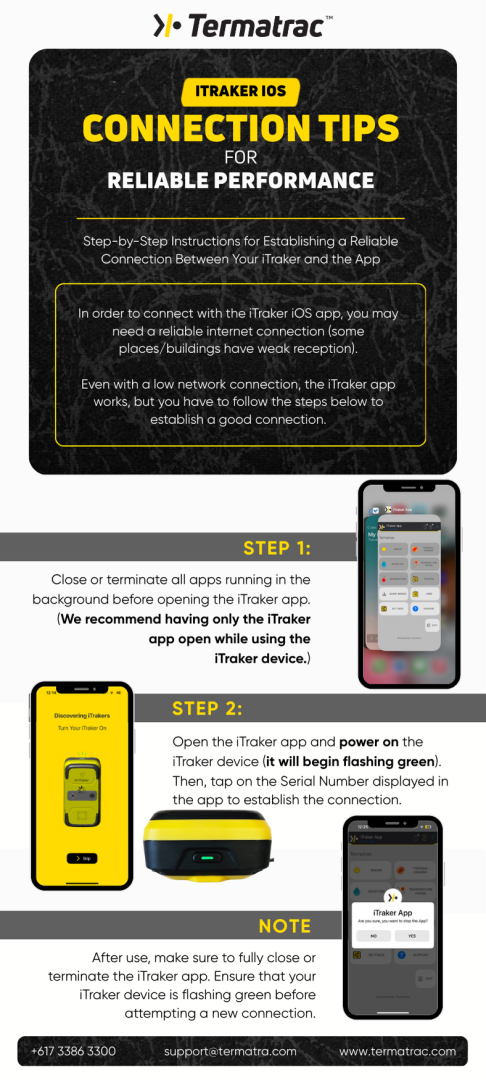
To ensure a stable connection between your iTraker device and the iTraker iOS app, please follow the steps below. Some locations may have weak reception, so a reliable internet connection is recommended. Even with low connectivity, the app can still work if the following steps are followed:
Step 1 Close Background Apps
Before opening the iTraker app, close or terminate all apps running in the background.
(We recommend only having the iTraker app open while using the device.)Step 2 Connect Your iTraker Device
- Open the iTraker app on your iPhone.
- Power on the iTraker device, the LED will begin flashing green.
- Tap the Serial Number displayed in the app to establish the connection.
Step 3 After Use
- Once your task is complete, fully close or terminate the iTraker app.
- Ensure the iTraker device is flashing green before attempting any new connection.
-
Important: Update to the Latest iOS Version of the iTraker App
Important: Update to the Latest iOS Version of the iTraker App
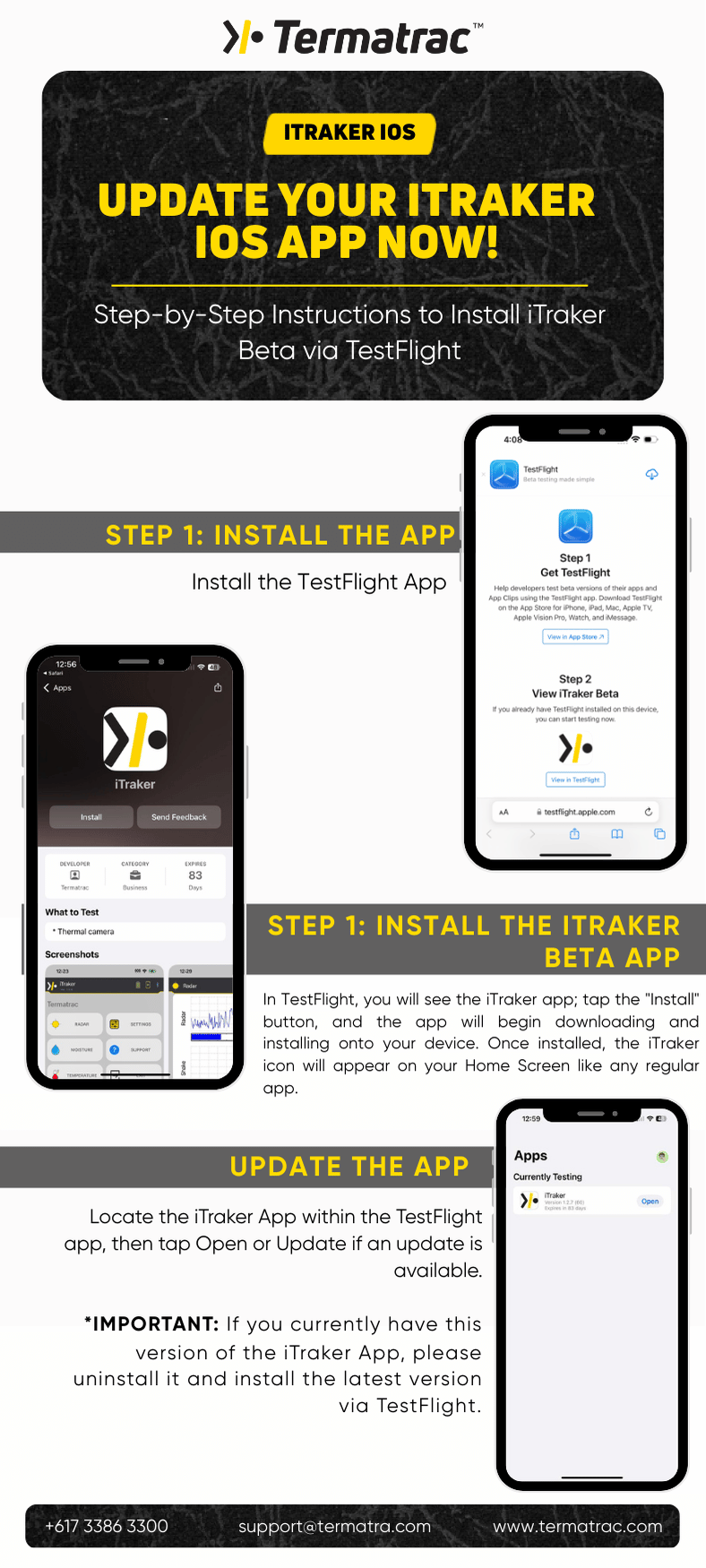
We are continuously releasing public beta updates for the iOS version of the iTraker App. If you are currently using an older version from the Apple App Store, you may experience functionality issues.
To ensure optimal performance, please uninstall the existing app from your iPhone and use the link below to download the latest version via TestFlight:
iOS App https://testflight.apple.com/join/5cGea2II
For your convenience, please see flyer with step-by-step installation instructions.
Note: If you are using the Android version of the iTraker App, please disregard this message.